 Paul Morello
Google Merchant Center is the free Google platform where you upload and manage your product data so your products can appear across Google — in Shopping ads, free listings, and Google’s AI shopping surfaces. If you sell online, it’s the single most important account you’ll create outside your own store: no Merchant Center, no products on Google. After fifteen years running product data for retail and ecommerce brands, I can tell you most “Google Shopping isn’t working for us” problems trace back to this one platform — usually to the feed or the policies. This guide covers what Merchant Center is, how to set it up properly, how product feeds work, and how to fix the disapprovals and suspensions that trip up most retailers.
What you’ll find in this guide
- What is Google Merchant Center?
- What Merchant Center powers
- How to set up Google Merchant Center
- The Google Merchant Center product feed
- Disapprovals, misrepresentation and suspensions
- Beyond the basics: local, regional and brand data
- Frequently asked questions
What is Google Merchant Center?
Google Merchant Center is the bridge between your catalog and Google’s shopping surfaces. You upload your product data — titles, prices, images, availability, identifiers — and Google uses it to build your product listings everywhere it shows products. The account itself is free; you only pay when you run Shopping ads through a linked Google Ads account.
A note on names, because it still confuses people: Google used to run two versions — classic Merchant Center and Merchant Center Next, a simplified redesign. Google has since moved every account to the Next experience, so today “Merchant Center Next” is simply what Merchant Center is. Same job, cleaner interface: product data in, Google surfaces out.
The mental model that matters: Merchant Center is a data platform, not an ad platform. Campaigns, budgets and bidding live in Google Ads. Merchant Center decides whether your products are eligible to show at all — and the quality of your data decides how well they perform when they do.
What Merchant Center powers
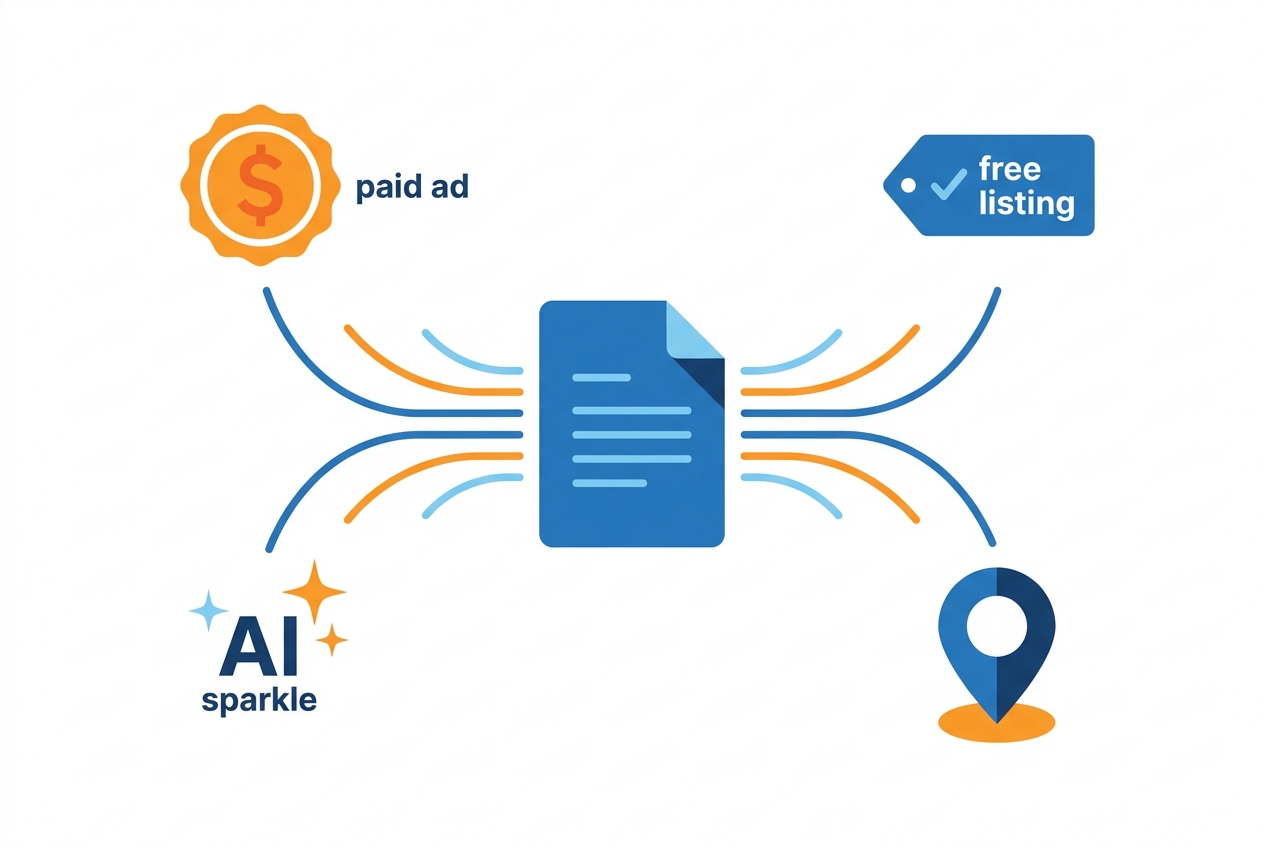
One product feed in Merchant Center feeds every Google shopping surface:
This is why the account matters more than any single campaign: the same data quality that gets you approved also decides your reach on the free and AI-driven surfaces — and as Google’s results get more AI-shaped, that’s where a growing share of product discovery happens. Google Shopping is also, in effect, the world’s largest comparison shopping engine — shoppers see competing offers side by side, so your price competitiveness is visible from the first impression.
How to set up Google Merchant Center
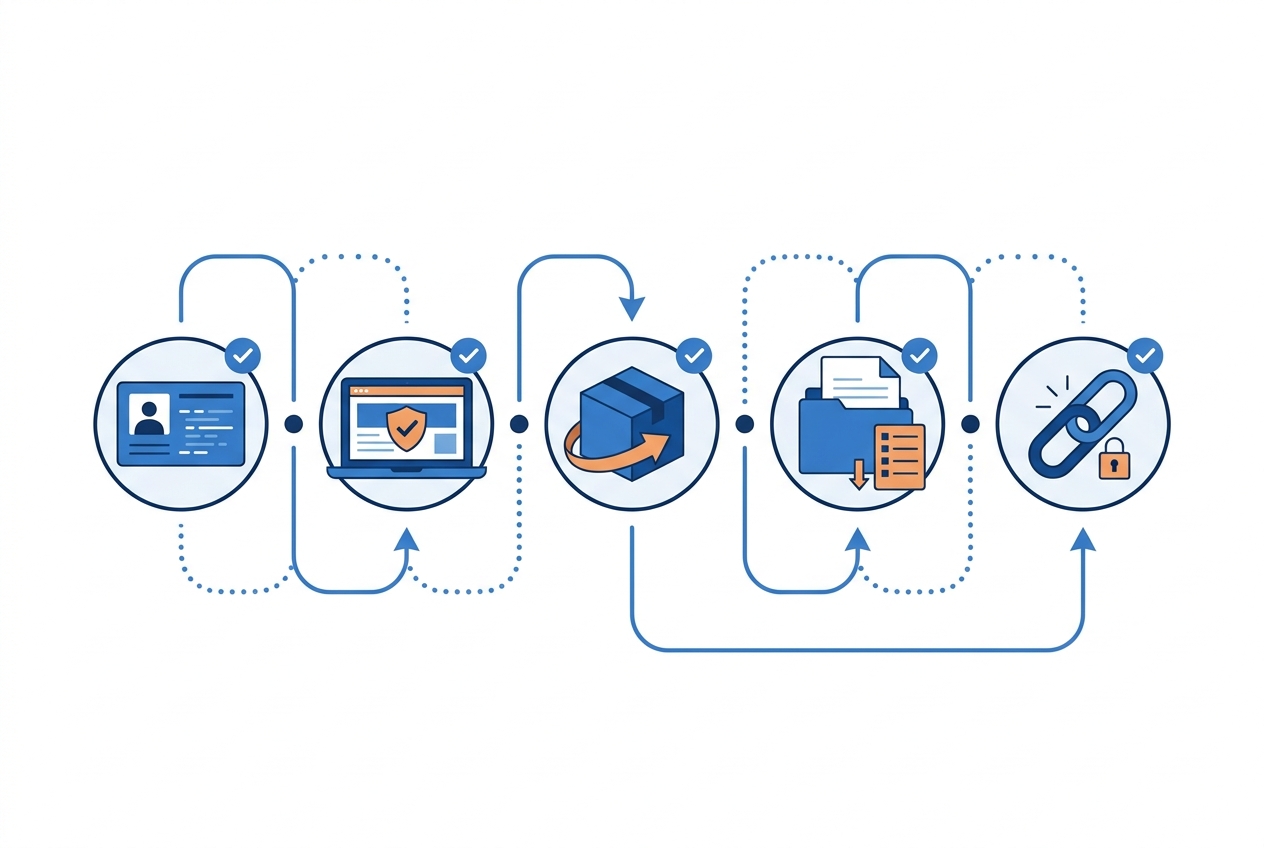
Setup is straightforward if you do it in the right order. The steps that matter:
- Create your Merchant Center account. Go to Google Merchant Center, sign in with your Google account, and enter your business details — name, country, time zone.
- Verify and claim your website. Prove you own your store URL (via your ecommerce platform, a site tag, or Search Console). Claiming locks your product data to your domain — and your product landing pages must actually live on it.
- Set shipping and returns. Google requires accurate shipping costs, delivery times and a return policy before products can serve. Vague or missing policies are a classic silent blocker — and return policy requirements have tightened over the years, so fill them in properly.
- Add your products. Via a product feed (next section), a platform integration, or letting Google crawl your site. For anything beyond a handful of products, use a feed.
- Link Google Ads. If you’ll run Shopping ads or Performance Max, link the accounts so campaigns can use your products.
- Wait for review. New products are reviewed before serving — typically within a few business days. Fix anything flagged, and don’t submit again blindly; understand the disapproval first.
If you’re on Shopify or WooCommerce, the official integrations handle verification and product sync for you — convenient to start, though as your catalog and channel list grow, most retailers move to a dedicated feed so they can control and optimize what Google actually receives.
The Google Merchant Center product feed
The product feed is the heart of Merchant Center — a structured file listing every product with the attributes Google requires. The core of the Merchant Center product data specification: id, title, description, link, image_link, availability, price, plus brand and gtin/mpn for most products, with conditional attributes for apparel and certain categories. We keep a full breakdown of formats, delivery methods and required fields on our Google Shopping feed page.
You can deliver the feed as a file upload, a scheduled fetch from a URL, or programmatically via the Merchant API (which is replacing the older Content API). Whichever route you choose, two disciplines separate feeds that perform from feeds that merely exist:
- Completeness and accuracy. Google matches and ranks products on the data you send. Front-loaded titles, correct identifiers, accurate categories — this is product feed optimization, and it’s the highest-leverage work in the whole account.
- Freshness. Price and availability in the feed must match your landing page at all times. Stale data doesn’t just perform badly — it gets products disapproved (more below).
Keeping a large catalog mapped, validated and refreshed by hand doesn’t scale — that’s the job of product feed management software, which maps your catalog to Google’s spec once, validates every product before it ships, and refreshes on schedule.
Disapprovals, misrepresentation and suspensions
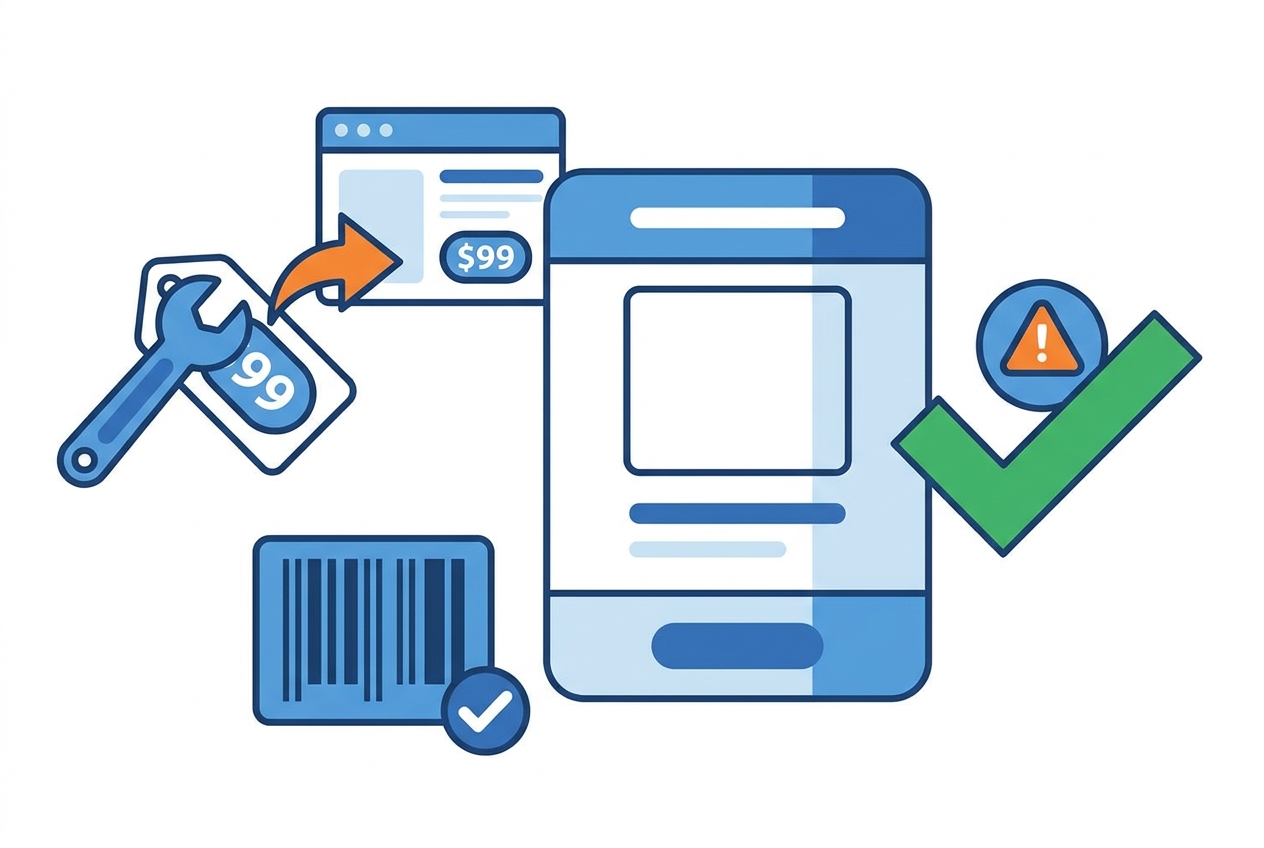
This is where most Merchant Center pain lives, so let’s be precise. Google enforces at two levels: product disapprovals (individual items blocked for data or policy issues) and account suspensions (the whole account blocked, most often under the misrepresentation policy — Google’s umbrella term for anything that looks untrustworthy or misleading about your business). The common cases and their fixes:
Notice the pattern: almost every issue is a data consistency problem — the feed, the website and reality drifting apart. The price/availability mismatch deserves special respect: if you reprice frequently (as any competitive retailer should), a feed that updates slower than your prices will get products disapproved for honesty you actually have. The answer isn’t to reprice less — it’s to wire your repricing and your feed together, so the price Google sees is always the price on the page.
Beyond the basics: local, regional and brand data
Once the core account runs clean, Merchant Center scales with your business through supplemental feeds:
- Local Inventory — show what’s in stock in your physical stores, per store, for Local Inventory Ads and free local listings. See our Google Local Inventory feed guide.
- Regional availability and pricing — different prices or availability by region within a country, via the regional inventory feed.
- Manufacturer Center data — if you’re a brand, submit authoritative product content through Google Manufacturer Center so Google represents your products correctly no matter who sells them.
Frequently asked questions
Is Google Merchant Center free?
Yes. Creating and running a Merchant Center account is free, and free listings cost nothing. You only pay when you run Shopping ads or Performance Max campaigns through a linked Google Ads account.
What’s the difference between Google Merchant Center and Google Ads?
Merchant Center holds your product data and decides eligibility; Google Ads runs the campaigns, budgets and bidding that use that data. You need Merchant Center for any product presence on Google; you only need Google Ads if you’re paying for placement.
Google Merchant Center vs Merchant Center Next — what’s the difference?
None anymore. Merchant Center Next was Google’s redesigned interface, and Google has migrated every account to it — so today it’s simply Merchant Center. The product data requirements are the same.
How long does Merchant Center approval take?
New products are typically reviewed within a few business days. Disapprovals show in the Products section with a reason; fix the underlying data or policy issue before requesting re-review.
Why was my Merchant Center account suspended for misrepresentation?
Misrepresentation is Google’s trust policy: incomplete contact details, unclear return/refund policies, business information that doesn’t match across your site and account, or offers that look misleading can all trigger it. The fix is completeness and consistency — make your business information explicit and identical everywhere, then request a re-review.
Do I need a product feed if I’m on Shopify or WooCommerce?
The official integrations can sync products automatically and are fine to start. A dedicated, optimized feed becomes worth it when you want control over titles, categories and exclusions — or when you sell on more channels than Google and want one source feeding all of them.
Merchant Center rewards the same thing on every surface: complete, honest, current product data. Get the feed right, keep prices and stock in sync with your store, and the account largely runs itself — with product feed management handling the mapping, validation and refresh, and your live prices flowing straight from your repricing rules into the feed Google reads.


